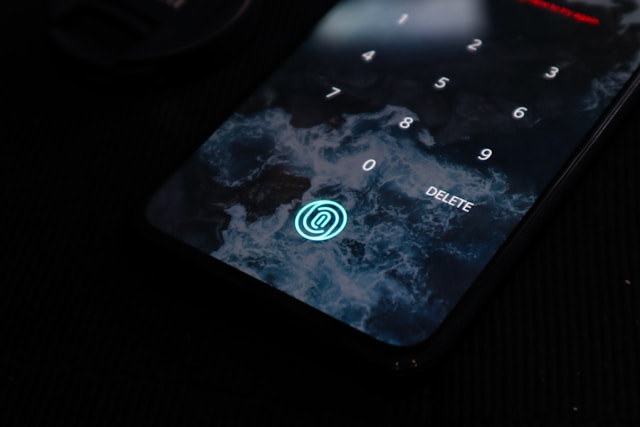
Imagine waking up one morning to find that someone has accessed your email account overnight. They’ve changed the password, locking you out completely. They’ve read through years of personal messages, bank statements, and work correspondence. They’ve used your email address to reset the passwords on your bank account, your PayPal, your Amazon account, and your social media profiles. By the time you realise what has happened, the damage is already done. This scenario plays out for real people every single day — and in the overwhelming majority of cases, it happens because the victim was relying on a password alone to protect their accounts. Two-factor authentication is the single most effective security improvement the average person can make to their online accounts today, and in this guide we explain exactly what it is, precisely how it works, why passwords alone are no longer sufficient, what the different types are, how to set it up, and how to recover if things go wrong.
What is Two-Factor Authentication?
Two-factor authentication — commonly abbreviated as 2FA, and sometimes called two-step verification or multi-factor authentication — is a security method that requires you to provide two separate and distinct pieces of evidence to verify your identity before being granted access to an account or service.
The underlying concept is elegantly simple. Instead of relying on a single password to protect your account, 2FA adds a mandatory second layer of verification. Even if someone manages to obtain your password — whether through a data breach at a company that stored your credentials, a phishing attack that tricked you into entering your details on a fake website, malware on your device recording your keystrokes, or simply by guessing a weak password — they still cannot access your account without also providing the second verification factor, which is something that only you have immediate physical access to.
Authentication factors fall into three classic categories that security professionals refer to as the authentication triangle. The first category is something you know — a password, a PIN, a security question answer, or any other piece of information stored in your memory. The second category is something you have — a mobile phone, a physical security key, a hardware token, or a smart card. The third category is something you are — a fingerprint, a face scan, an iris pattern, or another biometric characteristic.
Single-factor authentication — the standard username and password login — relies entirely on something you know. Two-factor authentication combines two of these three categories, most commonly something you know (your password) with something you have (your phone, which receives the verification code). Because an attacker would need to simultaneously compromise both factors to gain access, the security improvement is dramatic.
How Does Two-Factor Authentication Actually Work?
Understanding the mechanics of how 2FA works in practice helps you appreciate why it’s so effective and how to use it correctly.
The most widely used form of 2FA works as follows. You navigate to a website or app and enter your username and password as you normally would. If the password is correct, rather than being immediately logged in, the service recognises that your account has 2FA enabled and triggers the second verification step. It sends a unique numerical code — typically six digits — to your registered mobile phone number via text message, or generates one through an authenticator app you’ve previously set up. A prompt appears on your screen asking you to enter this code. You retrieve the code from your phone, type it into the login screen, and only then are you granted access to your account.
The code has two critical security properties that make it effective. First, it is time-sensitive — typically expiring after 30 to 60 seconds from generation. Second, it can only be used once — after it has been used to complete a login, it cannot be used again even within its validity window. These properties mean that even if an attacker somehow intercepted the code while it was being transmitted, they would need to use it within a window of seconds to gain any benefit from it, while simultaneously knowing your password and having the right username — a combination that is practically impossible to achieve remotely.
Authenticator apps work on a slightly different but related principle. Apps like Google Authenticator, Microsoft Authenticator, and Authy generate time-based one-time passwords — commonly abbreviated TOTP — locally on your device using a combination of a shared secret key established when you set up 2FA and the current time. Because both your device and the authentication server use the same secret key and the same time-based algorithm, they independently generate the same code at the same moment. No code is transmitted over the network until you actually type it — the generation happens entirely on your device. This makes authenticator apps significantly more secure than SMS-based 2FA because there is no transmission to intercept.
Physical security keys operate on a more sophisticated cryptographic principle. When you plug a security key into your computer’s USB port or tap it against your phone’s NFC reader during login, the key and the authentication server perform a cryptographic exchange — the server sends a challenge, the key signs it with a private cryptographic key stored securely inside the hardware device, and returns the signed response. The server verifies the signature using the corresponding public key. This entire exchange proves that you physically possess the specific hardware key registered to your account, without ever transmitting the private key itself. Because the cryptographic exchange is tied to the specific website you’re logging into, phishing attacks — where a fake website intercepts your credentials — are defeated completely.
Why Passwords Alone Are No Longer Sufficient
To fully appreciate why 2FA matters so much, it helps to understand exactly how inadequate passwords alone have become as a security mechanism in the modern threat environment.
Data breaches have exposed billions of credentials. Over the past decade, major companies including LinkedIn, Adobe, Yahoo, Marriott, Facebook, Equifax, and hundreds of smaller organisations have suffered catastrophic security breaches in which user databases containing usernames, email addresses, and passwords were stolen by attackers and subsequently published online or sold on criminal marketplaces. The website Have I Been Pwned, which tracks publicly disclosed data breaches, currently contains records of over twelve billion compromised accounts across thousands of breached services. The probability that at least one of your passwords has been exposed in a breach is, for most people, extremely high.
Password reuse compounds this problem catastrophically. Research consistently shows that the majority of internet users reuse the same password — or minor variations of it — across multiple accounts. When a breach exposes a password from one service, attackers immediately and systematically try that same password against email providers, banks, social media platforms, and other high-value targets. This technique, known as credential stuffing, is automated and can attempt millions of combinations per hour.
Password cracking has become trivially achievable for common passwords. Modern graphics processing units can attempt billions of password combinations per second. Automated tools systematically work through dictionaries, common password lists, and pattern variations — replacing letters with numbers, adding common suffixes, capitalising the first letter — defeating the kinds of password “tricks” that most people think are clever. An eight-character password using common words and simple substitutions can be cracked in seconds. Even genuinely random eight-character passwords can be cracked in hours with sufficient hardware.
Phishing attacks are increasingly sophisticated and convincing. Modern phishing emails and fake login pages are often virtually indistinguishable from legitimate communications and websites. Attackers invest significant effort in replicating the exact visual design, domain structure, and communication style of banks, email providers, government agencies, and popular online services. A single moment of inattention — clicking a link in an email while distracted, or failing to notice that a URL is slightly wrong — can result in your password being captured instantly.
Two-factor authentication provides effective protection against all of these attack vectors simultaneously. A password stolen in a data breach is useless to an attacker without the second factor. A successfully cracked password provides no access without the time-sensitive code. A convincing phishing attack that captures your password still leaves the attacker locked out. According to research published by Google, enabling 2FA blocks 100% of automated bot attacks, 96% of bulk phishing attacks, and 76% of targeted phishing attacks. No other single, simple security measure achieves results anywhere close to this.
The Different Types of Two-Factor Authentication
Not all implementations of 2FA offer the same level of security. Understanding the differences between the main types helps you make informed decisions about which to use for different accounts.
SMS text message codes The most widely available and most commonly deployed form of 2FA. When a login is attempted, a six-digit code is sent to your registered mobile number via text message. This is substantially better than no 2FA at all and provides meaningful protection against the most common attacks. However SMS-based 2FA has known vulnerabilities. SIM swapping attacks — where an attacker contacts your mobile carrier, impersonates you using personal information gathered from social media or data breaches, and convinces the carrier to transfer your phone number to a SIM card the attacker controls — can completely bypass SMS 2FA. The SS7 telecommunications protocol, which underpins global mobile messaging infrastructure, also has known vulnerabilities that can theoretically allow sophisticated attackers to intercept text messages. For most people facing typical everyday threat levels, SMS 2FA is adequate. For high-value accounts or individuals who face elevated security risks, stronger methods are preferable.
Authenticator apps Apps including Google Authenticator, Microsoft Authenticator, Authy, and 1Password generate time-based one-time passwords locally on your device without requiring any internet connection or mobile signal. Because codes are generated on your device rather than transmitted over the mobile network, they are not vulnerable to SIM swapping or SS7 interception. Authenticator apps represent a significant security improvement over SMS 2FA with only a minor additional inconvenience — you open an app rather than waiting for a text message. The main practical consideration with authenticator apps is account recovery if you lose your phone, which requires that you have saved your backup codes when setting up 2FA. Authy is particularly recommended among authenticator apps because it offers encrypted cloud backup of your 2FA accounts, making recovery significantly easier if you lose or replace your device.
Push notification authentication Some services and authentication platforms send a push notification to a dedicated app on your registered phone when a login attempt is detected, asking you to approve or deny the login with a single tap. Microsoft Authenticator and Duo Security are among the platforms that support this approach. Push-based authentication is highly convenient — often requiring less effort than entering a code — and is generally secure, though it requires an active internet connection on your phone to receive the notification. Users should be cautious about accidentally approving notifications they didn’t initiate, a technique attackers sometimes exploit through notification fatigue — repeatedly sending push notifications in the hope the user will eventually approve one to make them stop.
Physical hardware security keys Hardware security keys — small physical devices typically about the size of a USB flash drive, made by companies including Yubico, Google, and others — represent the most secure consumer 2FA option currently available. During login, you physically insert the key into your computer’s USB port or tap it against your phone’s NFC reader when prompted. The key performs a cryptographic verification that proves your physical possession of the specific registered device. Because the cryptographic exchange is cryptographically bound to the legitimate domain of the site you’re logging into, hardware security keys are completely immune to phishing attacks — a fake website cannot successfully complete the authentication exchange even if you visit it and attempt to log in. Hardware security keys are strongly recommended for journalists, activists, executives, cryptocurrency holders, and anyone who faces elevated security risks or manages highly sensitive accounts. They’re increasingly affordable — basic models from reputable manufacturers start at around $25 to $30.
Biometric authentication Many devices and applications incorporate biometric data — fingerprint scans, facial recognition, iris scans, voice recognition — as part of a multi-factor authentication flow. Your iPhone’s Face ID or fingerprint sensor, for example, serves as an authentication factor when combined with your device PIN. Biometric authentication is convenient and generally secure for most everyday use cases, though it has specific vulnerabilities — biometric data, unlike passwords, cannot be changed if compromised, and some biometric systems can be defeated by high-quality photographs or fingerprint reproductions under certain conditions.
Which Accounts Should You Protect With 2FA First?
Not all accounts carry equal risk, and if you’re new to 2FA, prioritising the most important accounts first makes the process manageable.
Your primary email account is the single most important account to protect with 2FA. Your email inbox is effectively the master key to your entire digital life — if an attacker controls your email, they can reset the password on every other account that uses that email address for password recovery. Protecting your email with strong 2FA should be your absolute first priority.
Banking and financial accounts are the second priority. Direct financial loss is the most immediately tangible harm from account compromise, and most banks and financial services now offer 2FA — often mandatory. If your bank offers authenticator app support or push notification 2FA in addition to SMS, opt for the stronger method.
Social media accounts — Facebook, Instagram, LinkedIn, Twitter/X, TikTok — are valuable targets for attackers for various reasons including identity theft, spreading misinformation, and accessing contacts and private messages. All major social platforms support 2FA and you should enable it on each.
Password managers, if you use one, should also be protected with the strongest available 2FA — ideally a hardware security key — since compromising a password manager provides access to every other account whose credentials are stored in it.
Any account containing sensitive personal or professional information, or whose loss would cause significant disruption to your life or work, should be considered a 2FA priority.
How to Set Up Two-Factor Authentication
Setting up 2FA is straightforward on all major platforms. The process is broadly similar across services — find the security or privacy settings, locate the two-factor authentication or two-step verification option, choose your preferred method, and follow the guided setup steps.
For Gmail specifically, go to myaccount.google.com, select Security from the left menu, find the Two-Step Verification option under the How you sign in to Google heading, and click Get Started. Google will guide you through the setup process and offer several 2FA options including Google prompts sent to your phone, authenticator apps, and physical security keys.
For Apple ID, go to appleid.apple.com or your iPhone Settings, tap your name, select Password and Security, and look for the Two-Factor Authentication option. Apple uses trusted device and trusted phone number verification.
For Facebook and Instagram, go to Settings, find the Security section, and look for Two-Factor Authentication. Both platforms support SMS, authenticator apps, and recovery codes.
For most other services, look for a Security or Privacy section within your account settings. The 2FA option is typically labeled Two-Factor Authentication, Two-Step Verification, or Login Verification.
Common Mistakes and Misconceptions
Misconception 1 — Two-factor authentication makes accounts completely impenetrable. 2FA dramatically raises the difficulty of account compromise but it is not an absolute guarantee against all attack types. Sophisticated real-time phishing attacks — where an attacker creates a convincing fake login page that simultaneously logs into the real service and relays your 2FA code in real time — can defeat SMS and authenticator app-based 2FA. Hardware security keys are resistant to this attack because the cryptographic exchange is domain-bound. For most people facing typical everyday threats, authenticator app-based 2FA provides excellent protection. For those facing elevated risks, hardware keys provide the strongest available protection.
Misconception 2 — Setting up two-factor authentication is technically complicated. For all major consumer platforms, enabling 2FA takes between two and five minutes and involves following a guided step-by-step process with clear instructions at each stage. The platforms have invested significant effort in making the setup experience accessible to non-technical users. The one-time setup investment is minimal compared to the ongoing security benefit.
Misconception 3 — I only need two-factor authentication on my most important accounts. While prioritising important accounts is sensible, attackers frequently use less important accounts as stepping stones to reach more valuable targets. An email newsletter account or an old forum account may seem insignificant, but if it uses the same password as your email, it can be the entry point for a credential stuffing attack that eventually compromises your primary email. Enabling 2FA wherever it’s available is always the strongest approach.
Misconception 4 — If I use a password manager, I don’t need two-factor authentication. Password managers and 2FA serve complementary and distinct security functions. A password manager ensures you use strong, unique passwords for every account — preventing credential stuffing and making individual password cracking much harder. Two-factor authentication ensures that even if a password is compromised, the account remains protected. Both together provide substantially stronger security than either alone.
Frequently Asked Questions
What happens if I lose my phone and can’t access my 2FA codes? Most services provide one-time backup codes during 2FA setup — typically a set of eight to ten codes, each usable once, that allow account recovery if you lose access to your primary 2FA method. Download and store these codes somewhere secure when you set up 2FA — printed out and kept physically somewhere safe, stored in a separate secure location, or saved in a password manager on a different device. Never store backup codes only on the same device you use for 2FA. If you didn’t save backup codes and have lost access to your 2FA method, account recovery typically requires contacting the service’s support team and verifying your identity through alternative means, which can be a slow and frustrating process.
Is SMS 2FA safe enough for banking? SMS 2FA provides meaningful security improvement over password-only authentication and is significantly better than nothing for banking accounts. For most people facing typical threat levels, it provides adequate protection against the most common attacks. If your bank offers authenticator app support, push notification authentication, or hardware key support, opting for these stronger alternatives is recommended. Contact your bank to understand what 2FA options they make available.
Can I use the same authenticator app for multiple accounts? Yes — all major authenticator apps including Google Authenticator, Microsoft Authenticator, and Authy can store 2FA credentials for an unlimited number of accounts, each displaying its own rolling code. Authy is particularly recommended for users with many accounts due to its encrypted cloud backup feature, which significantly simplifies recovery if you lose or replace your device.
What is the difference between 2FA and multi-factor authentication? Two-factor authentication is a specific implementation of multi-factor authentication that uses exactly two factors. Multi-factor authentication is the broader category encompassing any authentication system that requires two or more factors. All 2FA is MFA by definition, but MFA can include three or more factors for high-security applications. In everyday consumer contexts, 2FA and MFA are often used interchangeably.
What should I do if I receive a 2FA code I didn’t request? An unrequested 2FA code arriving on your phone is a serious warning sign — it means someone who has your password is actively attempting to log into your account at that moment. Do not enter the code anywhere. Change your password on that account immediately from a trusted device, review your account’s recent login activity for signs of unauthorised access, check whether any account settings have been changed, and consider whether you may have been the victim of a phishing attack that captured your password.
Should I enable 2FA on every account I have? Ideally yes — enable 2FA on every account that offers it. In practice, prioritise based on the sensitivity and value of each account, starting with email, banking, and social media. As you become more comfortable with the 2FA workflow, extending it to lower-priority accounts becomes quick and easy.
Is 2FA still worth using if I already have a very strong password? Absolutely yes. Strong passwords and 2FA protect against different types of attacks and complement each other rather than making each other redundant. A strong password makes cracking and guessing attacks much harder. 2FA protects you even if your strong password is compromised through a data breach or phishing attack — which are threats that strong passwords alone cannot defend against.
The Bottom Line
Two-factor authentication is the single most impactful security improvement the average person can make to protect their online accounts — more effective than any other individual security measure available to everyday users. It blocks the overwhelming majority of account takeover attempts, adds only seconds to the login process once you’re accustomed to it, and takes minutes to set up on most platforms. The question is not whether you can afford to enable 2FA — it’s free, it’s simple, and it’s available on virtually every major platform. The question is whether you can afford not to. Start with your primary email account today — it’s the most important account you have and the one that most urgently needs this protection. Then work through your banking accounts and social media profiles. Once those are protected, extend 2FA to every other account that offers it. The fifteen minutes you invest in setting this up today could save you from a genuinely devastating experience in the future.